
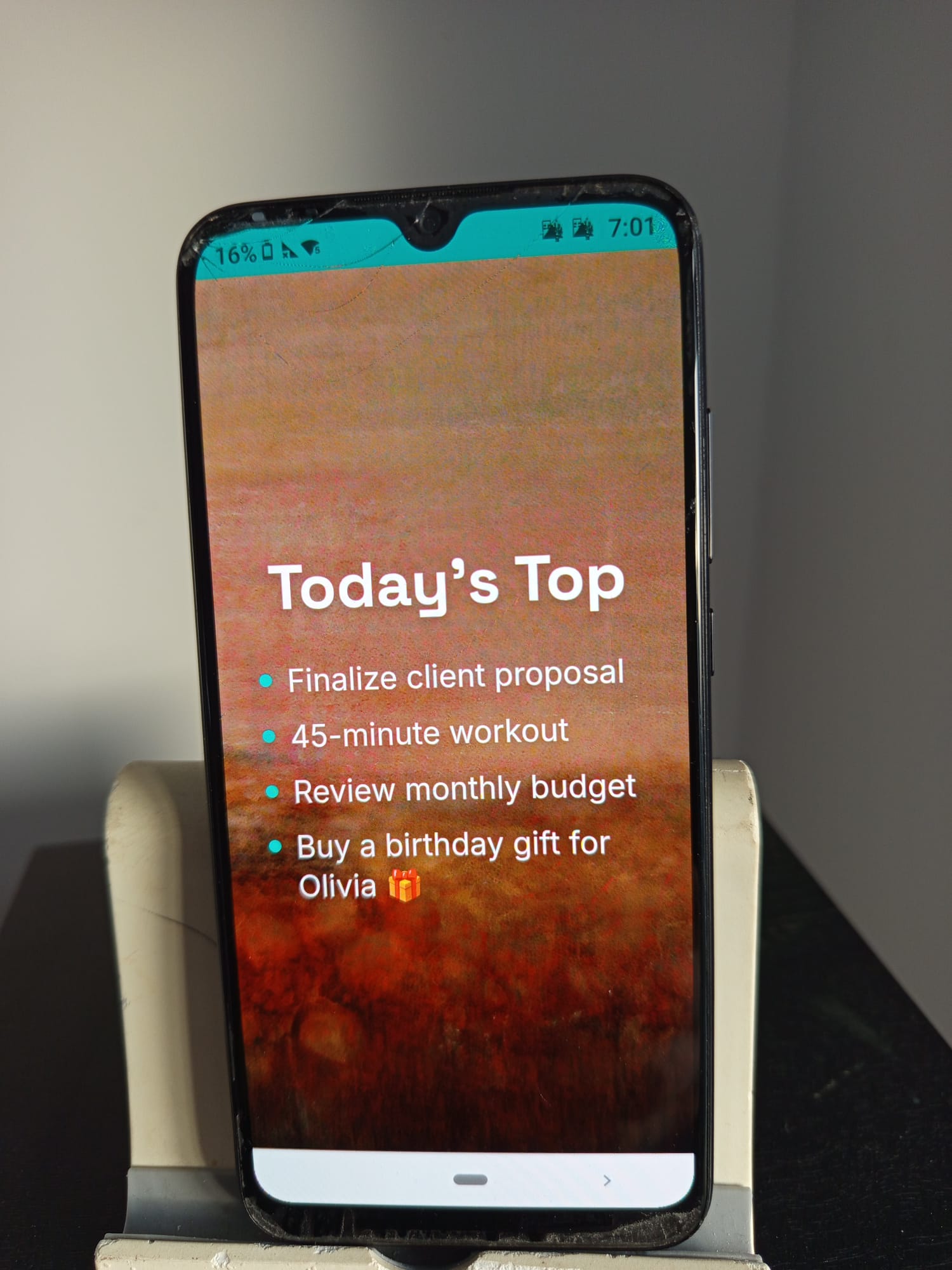
We all have that one drawer — the one stuffed with old phones and tablets we’ll “definitely use someday.” Well, someday is today. With MemoHelp, you can turn any old smartphone or tablet into a beautiful, always-on task display that keeps your four most important daily tasks right in front of you.
No apps to install. No accounts required. Just open a browser and go.
Why This Works So Well
Most productivity systems fail because they’re hidden inside apps you forget to open. A dedicated display mounted on your wall or propped on your desk changes the game:
- Always visible — your tasks are in your line of sight all day.
- Zero friction — no unlocking, no searching, no notifications to dismiss.
- Purposeful reuse — give your old device a meaningful second life instead of letting it collect dust.
What You’ll Need
- An old smartphone or tablet — Android, iPhone, or iPad, any age. As long as it turns on and connects to Wi-Fi, it’ll work. Tablets are especially great thanks to their larger screens.
- A mount or stand — a simple adhesive wall mount, a desktop stand, or a magnetic holder. For tablets, a wall-mounted tablet holder or a kitchen stand works perfectly. You can find these for a few dollars online or at any electronics store.
- A charger — keep the device plugged in so it stays on 24/7.
- Wi-Fi connection — the device needs internet access to load MemoHelp.
Step-by-Step Setup
Step 1: Prepare the Device
- Factory reset the phone or tablet (optional but recommended for a clean start).
- Connect it to your Wi-Fi network.
- Open the built-in web browser (Chrome, Safari, or any browser).
- Disable auto-lock / screen timeout — set it to “Never” so the display stays on. You’ll find this under Settings → Display → Screen Timeout.
Step 2: Open MemoHelp
- In the browser, go to memohelp.net.
- MemoHelp will load instantly — no sign-up needed.
Step 3: Install as a Web App (Recommended)
For the best full-screen experience:
On Android (Phone or Tablet):
- Tap the browser menu (three dots).
- Select “Add to Home Screen” or “Install App.”
- Open MemoHelp from your home screen — it will launch in full-screen mode with no browser bars.
On iPhone / iPad:
- Tap the Share button (square with arrow).
- Select “Add to Home Screen.”
- Open MemoHelp from your home screen.
Alternatively, visit memohelp.net/install for a guided installation page.
Step 4: Enter Your Four Tasks
MemoHelp is designed around one simple idea: four tasks per day. That’s it. No overwhelming to-do lists. Just the four things that matter most today.
- Tap on a task line to edit it.
- Type your task — keep it short and clear.
- Repeat for all four slots.
- When you complete a task, tap the checkbox to mark it done.
Step 5: Customize Your Display
Make it yours:
- Choose a background — pick a solid color, gradient, or upload your own photo.
- Set up a slideshow — rotate through multiple background images automatically.
- Add quick links — pin your most-used websites for one-tap access.
- Select your language — MemoHelp supports English, Hebrew, Spanish, French, German, Russian, Arabic, and Portuguese.
Step 6: Mount It
Now for the fun part — putting it on display:
- Wall mount: Use an adhesive holder or a small shelf bracket. Place it near your workspace, kitchen, or front door — wherever you’ll see it most.
- Desk stand: A simple stand on your desk keeps tasks at eye level while you work.
- Fridge mount: A magnetic holder on your refrigerator turns it into a family task board.
- Kitchen counter (tablets): Prop a tablet on a kitchen stand — the larger screen is easy to read from across the room and perfect for shared family tasks.
Plug in the charger, position the cable neatly, and you’re done.
Why Tablets Are Even Better
While old phones work great, tablets take this concept to the next level:
- Bigger screen — tasks are readable from several feet away, making a tablet ideal for wall-mounted or kitchen displays.
- Better viewing angles — most tablets have wider viewing angles than phones, so the board looks good from anywhere in the room.
- Shared family display — a tablet-sized task board is perfect for families. Hang it in the kitchen or hallway and let everyone see the day’s priorities.
- Dedicated tablet stands — there’s a wide selection of affordable tablet wall mounts and desk stands designed for always-on use.
Whether it’s an old iPad, a budget Android tablet, or even a Fire tablet with a browser — if it can load a webpage, it can run MemoHelp.
Pro Tips
- Enable Wake Lock: MemoHelp has a built-in screen wake lock feature that prevents the device from dimming or sleeping. Enable it in Settings for a true always-on display.
- Use Full-Screen Mode: Tap the full-screen button in MemoHelp to hide all browser elements and use the entire screen.
- Rotate Daily: Each morning, clear yesterday’s tasks and write today’s four priorities. The daily reset ritual is part of what makes this system work.
- Sync Across Devices: Create a free account to sync your board across your main phone, computer, and your new wall display. Update tasks from anywhere and they’ll appear on your mounted device.
- Reduce Brightness at Night: Lower the screen brightness or enable the device’s built-in night mode to avoid a glaring screen in dark rooms.
- Landscape Mode for Tablets: Try rotating your tablet to landscape orientation — MemoHelp adapts beautifully and gives your tasks even more room to breathe.
Frequently Asked Questions
Will this damage my old device’s battery?
Keeping a phone or tablet plugged in 24/7 is generally safe for modern lithium-ion batteries. Most devices stop charging at 100% and run on direct power. If your device supports it, enable any “battery care” or “optimized charging” feature in settings.
Does MemoHelp work offline?
Yes — once loaded, MemoHelp works as a Progressive Web App. Your tasks are saved locally and will be there even if your Wi-Fi drops temporarily.
What devices work best?
Any smartphone or tablet with a web browser will work. Tablets (iPad, Android tablets, Fire tablets) are especially effective due to their larger screens. Even devices that are 5-8 years old run MemoHelp smoothly.
What if my old device is really slow?
MemoHelp is lightweight by design. It loads fast and runs smoothly even on older devices with limited memory. If the device can open a web browser, it can run MemoHelp.
Can I buy a cheap tablet just for this?
Absolutely. A budget Android tablet ($40–$80) makes a fantastic dedicated task display. It’s a small investment for an always-on productivity tool that your whole family can use.
The Bottom Line
You don’t need a fancy smart home display or an expensive gadget. That old phone or tablet in your drawer is already a high-resolution, touch-enabled, Wi-Fi-connected screen — it just needs a purpose.
MemoHelp gives it one.
Four tasks. One screen. Always visible. Get started at memohelp.net.